

Is your Meta Pixel not tracking Shopify sales? Do you see traffic in Shopify and little or no purchases in Meta Ads Manager? This usually means your Conversions API or your Meta pixel is not tracking Shopify purchase events.
When purchases are missing, Meta cannot learn who buys, your campaigns lose optimization power, and your cost per purchase rises.
This guide shows how to diagnose and fix tracking gaps on Shopify and explains how eρ – Facebook Pixels & CAPI—keeps pixel and server events synced so you never lose sales data.
Why tracking breaks on Shopify
Meta uses two event sources: the Meta Pixel, which fires from the browser, and the Conversions API, which sends server-side events from Shopify. If either source is missing or misconfigured, events like Purchase do not appear in Ads Manager. Therefore, your Shopify sales will not be tracked by your Meta pixel.
Common causes are an unconnected pixel, an inactive Conversions API, duplicate pixels, domain mismatches, or privacy consent blocking browser events. All of these are fixable, and many are preventable with the right setup.
Quick checklist before you start
- Confirm the Pixel ID in Shopify matches the Pixel shown in Meta Events Manager.
- Confirm Conversions API is active and data sharing is set to maximum.
- Check for duplicate pixel scripts or old Facebook apps installed in Shopify.
- Verify your domain in Meta Business Manager and assign the pixel to that business manager.
- Test events in Meta Events Manager and run a real low-cost order to confirm the purchase appears.
Step 1: Fix Pixel ID Configuration When Meta Pixel is Not Tracking Shopify Events
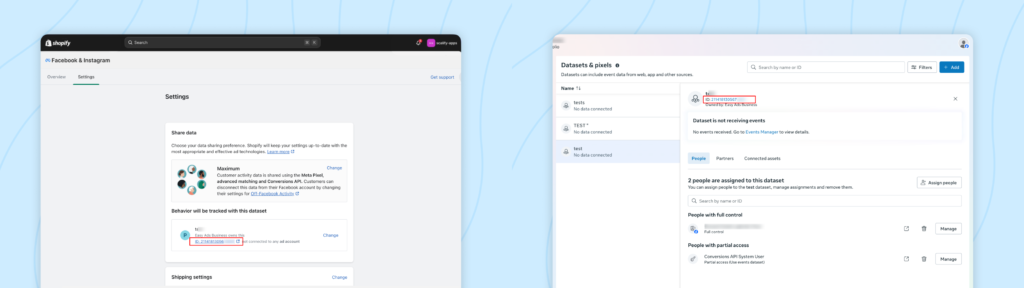
Steps:
- Open Shopify admin
- Go to Online Store, then Sales Channels → Facebook & Instagram.
- Click on settings, scroll down, and you should see a Pixel ID.
- Here is the corrected and complete step:
- If it is different from the Pixel you use in Meta, copy the correct Pixel ID from your Meta Business Manager, go back to Shopify, replace the old Pixel ID with the correct one, and then save your changes.
- After saving, refresh your storefront and test again to confirm the correct Pixel is firing.
This way, the pixel on your store matches the one you have in your Meta Business Manager.
Step 2: Check Conversions API and data sharing
Open Shopify admin, go to Sales Channels, choose Facebook & Instagram, and then go to Settings and Data Sharing Settings. Set Customer Data Sharing to Maximum.
This activates the server-side connection, so Shopify sends purchase events to Meta even when browser events are blocked. If your store shows Maximum already, move on. If it does not, change it and save.
Step 3: Test events in Meta Events Manager
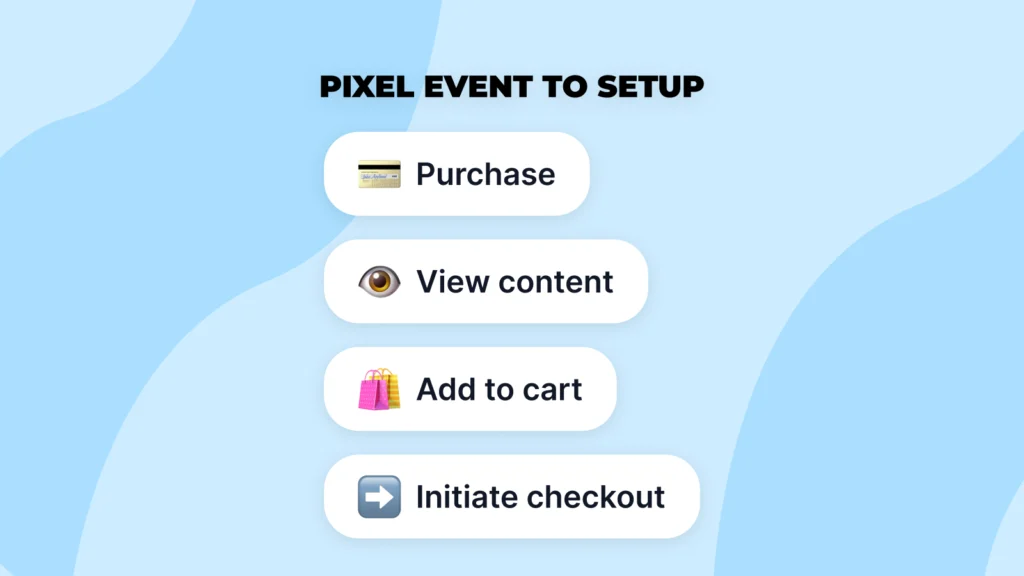
Open Meta Events Manager and select your pixel. Use the Test Events tab. Perform the actions on your storefront: view a product, add to cart, go to checkout, and complete a test order. You should see View Content, Add to Cart, Initiate Checkout, and Purchase appear in real time.
Step 4: Remove duplicate pixels and old integrations
Duplicate pixel scripts cause event duplication and tracking conflicts, breaking both your Shopify tracking and Meta pixel accuracy. This inflates conversion counts, corrupts your data, and makes ROAS unreliable. In Shopify, go to Apps and remove any outdated Facebook apps or unused third-party pixel tools.
Then open Online Store, Themes, and Edit Code, and search theme.liquid and any header files for leftover pixel scripts. Remove duplicates so the only pixel integration is the one managed by Shopify or your tracking app.
Stop Wrestling With Pixel Code
eρ automatically prevents duplicate scripts and keeps your pixel and Conversions API in sync—no manual debugging required.
Install eρ FreeStep 5: Verify Domain Ownership to Fix Meta Pixel Not Tracking Shopify
Open Meta Business Manager → Brand Safety → Domains. Add and verify your Shopify domain using the meta tag verification method that Shopify supports.
After verification, you need to ensure the pixel you use is assigned to the same business manager that owns the verified domain. If the pixel and domain are in different business managers, Meta can block certain events from being attributed.
Step 6: Check checkout and payment flow for missing events
If test events show ViewContent and AddToCart but not Purchase, run a full purchase test with a low-cost product and a test payment method or an admin-created draft order. After the order completes, check Events Manager for the purchase event.
If it does not appear, confirm that Shopify’s order and checkout code has not been customized in a way that blocks server events. Custom checkout scripts or apps that modify checkout pages can interfere with event firing.
Step 7: Consent and privacy considerations

Some browsers or devices block third-party cookies and browser signals. Make sure you enable and configure your store’s cookie consent under Shopify Settings → Customer Privacy. If users opt out, the system suppresses browser events.
That is why Conversions API is essential; server events deliver purchase data even when the browser blocks tracking.
Step 8: Diagnose using Meta diagnostics
In Meta Events Manager, open Diagnostics. Look for common warnings such as duplicate events, missing parameters, or low event count.
Each diagnostic gives recommended actions. For duplicate purchases, remove duplicate scripts. For missing parameters, check that the necessary parameters, like transaction_id or value, are being sent. Use the diagnostics as a prioritized list of fixes.
Never Miss Another Purchase Event
eρ monitors your tracking 24/7 and sends server-side events even when browsers block cookies. See every sale in real-time.
Get eρ NowStep 9: Confirm Meta Pixel Not Tracking Shopify Issues Are Fixed
After applying fixes, place a low-cost live order or create a draft order that you then mark as paid. Wait a few minutes, then check Events Manager for the purchase event. Accurate tracking ensures Meta’s algorithm can exit the learning phase efficiently and optimize for conversions—critical for campaigns to perform at their best.
Confirm the purchase is visible and the parameters, such as value, currency, and content IDs, match the Shopify order. If they do, your tracking is reconciled, and Meta can optimize reliably.
When to use Conversions API events other than Purchase
If your store is small or purchases are infrequent, optimize first for higher volume events like AddToCart or InitiateCheckout while your pixel builds purchase history. This approach helps maintain a healthy conversion rate while your store scales and generates enough purchase volume to optimize profitability.
That 50-event rule is a practical target to exit the learning phase.
How eρ Facebook Pixels & CAPI prevents these problems
The eρ – Facebook Pixels & CAPI Shopify app installs and maintains both pixel and server-side connections automatically. It validates Pixel ID, activates Conversions API, prevents duplicate scripts, handles domain verification steps where possible, and surfaces real-time event logging so you can see ViewContent, AddToCart, InitiateCheckout, and Purchase without manual debugging.
The eρ—Facebook Pixels & CAPI app also adds fallback logic, sending server events even when browser events fail or when consent blocks cookies.
Troubleshooting: Meta Pixel Still Not Tracking Shopify After All Steps
If your purchase still does not appear after all the above:
- Recheck that the pixel in Events Manager matches the pixel ID you see in Shopify Preferences.
- Confirm the pixel is in the same Business Manager that owns the verified domain.
- Temporarily disable any custom checkout apps or scripts and retest.
- Use the Test Events tool while watching server logs if you have developer resources.
If these steps do not resolve the issue, eρ support can provide account-level diagnostics and guide the fix.
Post-fix monitoring and best practices
Once you restore tracking, add a monthly check to your routine. Open Events Manager, run a quick test event, and compare Shopify orders with the purchase events sample.
Keep Data Sharing set to Maximum. Avoid manual edits to theme code and avoid installing multiple pixel apps. If you change domains or switch themes, rerun the verification and test steps.
Set It Once, Track Forever
Skip the monthly checks and theme edits. eρ automatically maintains pixel health and validates tracking after every change.
Try eρ FreeFinal Thoughts: Why Meta Pixel Not Tracking Shopify Purchases Destroys Campaign Performance
When your Shopify tracking fails to reflect the data your Meta pixel collects, it compromises your entire advertising strategy. Accurate tracking is the foundation of profitable ad campaigns. Without reliable purchase events, you cannot measure ROAS, and scaling becomes risky.
Fixing pixel and CAPI issues is often a few configuration steps away. For ongoing reliability, centralize tracking with a tool that maintains pixel and server signals automatically.
If you want a hands-off way to keep Pixel and CAPI healthy, eρ – Facebook Pixels & CAPI automates installation, verification, and monitoring for Shopify stores. Install eρ from the Shopify App Store, connect your ad account, and let the app keep your sales data safe so you never lose it again.
FAQs
Why is My Meta Pixel not Tracking Shopify Purchase Events?
A few things might get in the way here. Sometimes, you don’t turn on the Conversions API. Other times, you link your pixel to the wrong Business Manager or add duplicate pixel scripts that cause issues. Go through the troubleshooting steps above to sort it out.
Should I Skip Conversions API If Meta Pixel Is Not Tracking Shopify Purchases?
Nope. Pixels in the browser run into all kinds of blocks—think privacy settings or ad blockers. Conversions API picks up the slack by sending server-side events, so you don’t miss out even if browser tracking drops the ball.
How often should I check if my tracking works?
Check your events at least once a month. Also, anytime you update your theme, add new checkout apps, or change your domain, run a test. Staying on top of this helps you catch problems early and keeps your ROAS numbers accurate.
How does eρ Facebook Pixels & CAP make tracking easier?
Eρ sets up and handles both your pixel and Conversions API connections for you. It stops duplicate scripts, checks your domain, and gives you live event logs—so you never lose track of your sales data.
Leave a Reply